Terra — Quick Start Guide
Terra takes your assumptions and generates the investment returns — IRR, profit on cost, equity multiple and many more — built from month-by-month cash flows. It works the other way round too: tell it the return you need and it solves the purchase price that delivers it. And it produces an auditable Microsoft Excel model of the whole appraisal, with every total and every KPI a live formula you can follow.
This guide walks you through a first appraisal from start to finish. You don't need to read it all — the single most important idea is “Understanding a line item” (section 4 below), because once you understand one input section you understand sixteen of them.
One convention to know upfront: throughout Terra, costs are entered as negative numbers and income as positive. That's why a construction line shows a rate of
-250, while a sale line is positive. You'll see it everywhere.The same rule decides the sign of the funding, and it is worth saying plainly because it catches people out: capital contributions are POSITIVE — whether they are debt or equity — because they are money coming INTO the development vehicle. An equity injection, a loan drawdown, a facility amount: all positive. What leaves the vehicle — the land, the build, the fees, the interest — is negative.
1. Start from an example, not a blank page
When Terra opens you can begin in one of two ways:
- Pick a ready-made example scheme. The quickest start. Choose one of the built-in examples — New development, New investment, New blank, or a worked complex development — and the whole form is filled in with sensible figures you can then edit. Think of these as starting points, not straitjackets: change anything you like.
- Import an existing Excel model. If you already have a Terra Excel output, you can upload it and the form will be populated from it.
Starting from an example is strongly recommended for your first few appraisals — it shows you what “good” looks like and you learn by editing rather than by building from nothing.
Choose the appraisal style (mode)
Terra has four modes, and the mode simply decides which input sections are shown so you're not distracted by ones you don't need:
| Mode | Use it for |
|---|---|
| Development simple | A straightforward build-and-sell scheme. |
| Development complex | A development with the full set of cost sections (shows everything). |
| Investment simple | A straightforward income-producing / hold asset. |
| Investment complex | An income asset with the fuller set of sections. |
| Buy-to-let house | A single let residential property — bought, held and sold. The smallest complete appraisal in Terra, and the quickest way to see the whole model end to end. |
| HMO — four letting rooms | The same house let by the room, so four leases run side by side against one building. The simplest example of the lease areas doing real work. |
You can switch mode at any time, and you can fine-tune exactly which sections each mode shows in Settings.
2. The building blocks: Appraisal details, Areas, Timings
Three sections at the top set the “shape” of everything else. They're mostly self-explanatory, so briefly:
(Areas and Timings sit together under one Areas and Timings heading, the twelve cost sections under Costs, the operating sections under Net Operating Income and the two sales sections under Sales, so the page opens as a short list of headings. Open a heading to reach the sections inside it.)
- Appraisal details — the name of the project and scenario (these become the Excel filename), plus top-level settings: the currency and area unit, the appraisal date, the number of cash flow periods the model runs for and the calendar month period 0 falls in.
- Areas — the floor areas of the scheme, split into Commercial units (01–05) and Residential units (01–05), each with a Gross (GIA) and Net (NIA) area. These areas matter beyond just floorspace: many cost and income lines are entered as a rate per unit of area, and they link straight to these boxes (you'll see this in the line-item walkthrough below).
- Timings — the key dates of the scheme as period numbers (Terra works in months, so period 8 = month 8). Timings are given friendly names — Construction start, Construction end, Sale, and so on — and everything else in the model hangs off these named timings by link + offset rather than by hard-coded month numbers. Move Construction start and every cost that links to it moves with it.
3. Purchase price (and the Purchase price helper)
- Purchase price — what you're paying for the site/asset. Enter it directly if you know it.
- Purchase transfer tax — transaction taxes/duties on the purchase.
- Purchase price helper — a small calculator that helps you work back to a purchase price (for example grossing-up or netting-off transfer tax) and then, with the “Transfer to purchase price” button, drops the result straight into the Purchase price box. Use it when you know the number you can afford all-in and need Terra to tell you the headline price to enter.
If you don't know the purchase price at all — you want Terra to solve it for a target return — that's the Residual value tool (section 6).
4. Understanding a line item — the one pattern behind 16 sections
This is the heart of Terra. Sixteen of the input sections work in exactly the same way — once you can read one, you can read them all:
Acquisition · Pre-acquisition · Planning · Professional fees · Infrastructure · Enabling works · Refurbishment · Construction · Construction contingency · Community · Marketing · Other costs · Operating costs · Operating income · Sale proceeds · Sale costs
Each of these sections is a stack of line items. Below is a single real line item — the first line of the Construction section — with every box explained.
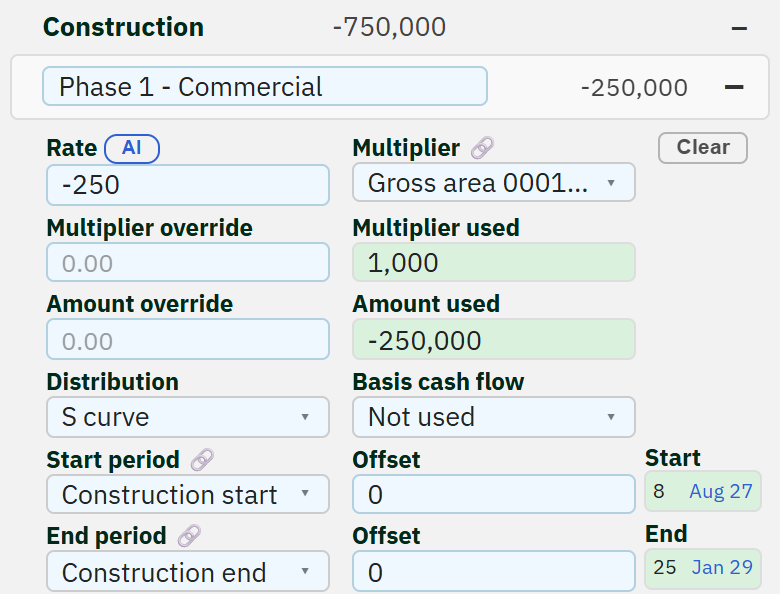
Read it as one sentence: “Spend -£250 per ft² of area 0001's gross area (which is 1,000 ft²) = -£250,000, spread as an S-curve from Construction start (period 8) to Construction end (period 25).”
Every box, in order
Section header — Construction -750,000
The title of the whole section and, on the right, the
section total — the sum of every line item in it.
Costs are shown as negative numbers, so
-750,000 means £750,000 of construction cost across all
its line items (this one line is £250,000 of that). The
– button on the far right collapses/expands the
section.
Description — Phase 1 - Commercial
A free-text label for this line, so you can tell your line items apart. It has no effect on the numbers.
Rate — -250
The price per unit — here -£250 per ft². It's negative because construction is a cost. (Income lines, e.g. Sale proceeds, use positive rates.)
Sign and units. Either sign is allowed — what matters is that Rate × Multiplier comes out the right way round: ordinarily negative on a cost section and positive on an income or sales one. So on a cost line one of the two is negative and the other positive; which one is your choice. Two negatives would turn the cost into income.
The box accepts a plain number or a
percentage — 10% and 0.1
mean the same thing. A rate per ft² and a percentage of another line
are both ordinary uses.
Multiplier — Gross area 0001: Office 🔗
The quantity the Rate is multiplied by. The 🔗 link icon means this isn't a number you typed — it's linked to another value in the model, in this case the gross internal area of area 0001, the first row of the Areas section. Because it's linked, if you change that area, this line updates automatically.
Each area is named by its number and its description - area 0001 is
the one described as Office - and carries its own
type (Com: Office, Res: Private sales and so on),
which you can change at any time. On a narrow screen the box shows
only the start of the name. You can also link a multiplier to
the total for a type
(Gross area Com: Office), to the commercial or
residential totals, to GDV totals, the land area, the purchase price
and more.
Sign and units. Same rule as the Rate, because the two are multiplied together: either sign is allowed, and it is the product that should read as a cost or as income. A number or a percentage are both accepted.
Multiplier override — 0.00
Want to ignore the link and type the quantity yourself? Put it here.
The greyed 0.00 is a placeholder: while
the box is empty, Terra is “not overriding” and uses
the linked value. Type a number to override the link — leave it blank
to keep using the link.
Sign and units. Either sign, and a number or a percentage — it simply replaces whatever the link resolves to, so the same “the product decides” rule applies. A zero is a real answer here and multiplies the rate by nothing; that is different from leaving the box blank.
Multiplier used — 1,000
The quantity Terra actually used, after resolving the link (or your override). Read-only. Here area 0001's gross area is 1,000 ft².
Amount override — 0.00
Want to set the line's total directly, instead of
letting Terra do Rate × Multiplier? Put the total here. Again, the
greyed 0.00 is a placeholder — leave the
box blank to not override. Use this for a lump-sum
line where a rate-times-quantity doesn't make sense.
Sign and units. This one is an amount, never a percentage, and it carries the sign the product would have had — negative on a cost section, positive on an income one. A zero pins the line to nothing, which again is different from leaving it blank.
Amount used — -250,000
The resulting figure for this line = Rate × Multiplier used = -250 × 1,000 = -£250,000 (or your Amount override, if you set one). Read-only. This is what feeds the cash flow.
Distribution — S curve
How the amount is spread across the months between Start and End:
- S curve — slow-fast-slow, typical of construction spend.
- Linear — evenly across the period.
- Based on another cash flow — follow the shape of a different line/stream (see the next box).
Basis cash flow — Not used
Only relevant when Distribution is “based on another cash flow” — this is where you'd pick which cash flow to follow (e.g. spread marketing in line with sales). Here it's Not used, because the Distribution is a plain S-curve.
Start period — Construction start 🔗 · Offset
0 · Start 8
When this line begins:
- Start period (🔗) — links to a named Timing (here Construction start), so the line moves if that timing moves.
-
Offset — months to add or subtract from that
timing.
0= exactly on it;3would start three months later. - Start — the resolved period number Terra worked out (period 8). Read-only.
End period — Construction end 🔗 · Offset
0 · End 25
When this line finishes, in exactly the same way:
- End period (🔗) — the named timing it ends on (Construction end).
- Offset — months added/subtracted.
- End — the resolved end period (period 25). Read-only.
So this one line spreads -£250,000 as an S-curve across months 8 → 25. To add another line (e.g. Phase 2 – Residential), use the section's add control and fill in the same boxes.
That's the whole pattern. Every one of the sixteen sections above is just a stack of these line items. Cost sections use negative rates; income sections (Operating income, Sale proceeds) use positive ones.
5. The action bar — your icon toolbar
The icons run left to right in the order you use them: look at the model, open or save it, analyse it, then take the Excel model away at the end.
Shortcuts use Ctrl+Alt, not Ctrl+Shift. Ctrl+Shift combinations belong to the browser — Ctrl+Shift+R is a hard reload, which would throw away your appraisal — and Alt+Shift is Windows' keyboard-language switcher. Ctrl+Alt is clear of both.
Along the top of the app sits a row of icon buttons. Hover any of them in the app for a tooltip; here's what each one does (keyboard shortcuts in grey). Results update automatically as you edit, so there's no separate “calculate” button. Every shortcut, including the burger menu's, is listed in Appendix A.
Expand / collapse all sections Ctrl+Alt+c
Steps the form through three states: everything collapsed, the section groups open (a list of section headings), and everything open — handy for seeing the whole form or tidying it away.
Headline / detailed KPIs Ctrl+Alt+k
Flips the top banner between the headline numbers and the fuller, detailed KPI set.
Load a saved appraisal Ctrl+Alt+o
Opens My saved appraisals — everything you have saved, plus anything shared with your organisation. Templates are listed first, so a standard starting point is always at the top. Sits next to Save because the two are a pair.
Save the appraisal Ctrl+Alt+s
Saves the current appraisal to your account (name, scenario, date & time) so you can reload it later — and, if enabled, share it with your organisation.
Residual value (solve the price) Ctrl+Alt+r
Solves the purchase price that hits your target KPI — the goal-seek from section 6.
Sensitivity analysis (Pro) Ctrl+Alt+f
Runs a two-variable sensitivity grid so you can see how a KPI moves. Pro only — non-Pro accounts see an “Upgrade to Pro” arrow () in this spot instead.
Cash flow preview Ctrl+Alt+v
Opens the period-by-period vertical cash flow (like the Excel model) without opening Excel.
Build & download the Excel model Ctrl+Alt+e
Generates the fully-formatted, formulaed Excel appraisal and downloads it (a phone opens the share sheet instead).
Settings — the colour theme and which sections show in each mode — lives in the burger menu (top-right), not on the action bar.
6. Residual value — let Terra solve the price for you (not available on the free plan)
Often you don't want to enter a purchase price — you want to know the most you can pay and still hit a target return. That's Residual value (a “goal seek”), and it sits right under the purchase price inputs.
Residual value is not available on the free plan — it comes with Basic and Pro, and during the 7-day free trial; on the free plan the section says “(only available on paid-for plans)”.
- Open the Residual value section.
- Choose the Target KPI — the measure you want to hit.
- Type the Target KPI value you want it to reach.
- That's it. Terra re-solves as soon as you change either box, and the answer appears beside the section title, in the same place every other section shows its total. It stays visible when the section is collapsed.
Terra repeatedly re-runs the whole appraisal, adjusting the purchase price each time, until the measure hits your target — so the answer to “what land price makes this a 20% profit-on-cost scheme?” arrives without any trial and error.
The thirteen targets
| Target KPI | What you are fixing |
|---|---|
| POC [Leveraged] / [Unleveraged] | Profit on cost, the headline basis (sale costs excluded) |
| POC+Sales costs [Leveraged] / [Unleveraged] | Profit on cost with sale costs in the cost base — the valuer's basis |
| IRR [Leveraged] / [Unleveraged] | The annualised internal rate of return |
| GDV Margin [Leveraged] / [Unleveraged] | Profit as a percentage of gross development value |
| NDV Margin [Leveraged] / [Unleveraged] | Profit as a percentage of net development value |
| Equity Multiple [Leveraged] / [Unleveraged] | Cash back divided by cash in, e.g. 1.50 for one and a half times the money back |
| Equity Total | The total equity the scheme needs |
Leveraged means with the debt; unleveraged means as if the scheme were funded entirely with cash. Each target remembers its own value, so you can switch between them and back without retyping.
Equity Total answers a different kind of question, and it is the one to reach for when equity and debt draw down pari passu (see Finance). Under that funding order the loan may never reach its cap, so “the price at which this still hits my IRR” and “the price at which I put in no more than £5m of my own money” are genuinely different questions. Before, only the first could be asked.
Things worth knowing
- It always solves the purchase price — never a cost, a rent or a yield. That is what makes the answer a land value.
-
Percentages accept either form. Type
20%or0.2; both mean the same thing, and the box will show it back to you as a percentage. - The answer depends on every other assumption. Change the build cost, the programme or the funding and the residual value moves — so re-read it after any edit rather than trusting a figure you solved earlier.
- The ⇥ button beside the answer copies it into Purchase price, which turns the solved price into an ordinary appraisal you can carry on working with.
- Ctrl+Alt+r (or the target icon in the action bar) opens the section and forces a solve at any time.
- If Terra cannot find an answer it says so rather than showing a number. Behind the scenes it uses a fast method that estimates the slope and steps towards the goal, and falls back to a slower but unfailing halving search if that method wanders. A target no price can reach — a 60% profit on cost on a scheme whose costs are mostly fixed — genuinely has no answer, and being told that is more useful than a plausible-looking wrong one.
- A positive purchase price is a legitimate answer, if an unusual one. Costs are negative in Terra, so a residual value that comes out positive means the scheme cannot support any land price at your target — you would need to be paid to take it on.
7. Leases — up to 99 areas, and why each has three leases
The Lease inputs section is for income-producing space. There are up to 99 lease areas, and — this surprises people — each area has three lease slots. They represent the life of a letting over time:
- Lease 1 — the active (in-place) lease. The tenancy running today. Fill this in if the space is already let.
- Lease 2 — a tenant lined up. A known future letting — e.g. an agreed deal due to start later. Optional: leave it blank if you have no specific tenant lined up.
- Lease 3 — the recurring lease. The long-run, stabilised letting that repeats into perpetuity — this is what usually drives the investment value of the space.
For a typical development valuation you often only need Lease 3 (the recurring lease): there's no sitting tenant and no specific deal agreed yet, so Leases 1 and 2 can be left empty and the recurring lease carries the value.
Inflating the rents. If you switch on detailed inflation assumptions for a lease area, each lease slot takes its own growth rate: ERV1 → Lease 1, ERV2 → Lease 2, and ERV3 → Lease 3 and every lease after it.
⚠️ There is no ERV4. Because Lease 3 recurs into perpetuity, ERV3 sets the growth rate for the whole of the long-run income — not just the third letting. It is the rate that does most of the work in an investment valuation.
8. Finance
The Finance section is where you size debt and, if you use it, decide how the profit is shared. Whatever the debt does not fund is equity, and that split is what turns the unleveraged numbers into the leveraged ones — leveraged IRR, equity multiple and profit on cost.
Terra models two different loans, and they are not two settings for the same thing. They fund different things, at different points in the scheme's life, and — the part most worth understanding — they measure “value” differently.
Development debt
Development debt funds the build. It is drawn down as costs are incurred rather than in one lump, interest rolls up rather than being serviced monthly, and it is repaid when the scheme sells or refinances.
Its LTV is measured against GDV — the end value, what the finished scheme is expected to be worth. That is the right basis for it: a development lender is lending against something that does not exist yet, so the only value worth testing is the value on completion.
Lower of LTC% and LTV%
Development debt is sized against two limits, and Terra takes the lower (more cautious) of the two:
- LTC — Loan to Cost. A percentage of total scheme cost. e.g. 65% LTC × £10.0m cost = £6.5m.
- LTV — Loan to Value. A percentage of the end value (GDV). e.g. 60% LTV × £11.0m GDV = £6.6m.
Terra lends the lower of the two — £6.5m in the example — because that is the binding constraint a lender would apply. Set both percentages and Terra works out which one bites and sizes the loan, and therefore your equity, accordingly.
Which one bites tells you something useful about the scheme. If LTC is the constraint, the lender is limited by what you are spending; if LTV is the constraint, they are limited by what it will be worth. A scheme where LTV bites hard is one where the margin is thin.
Every Finance input is explained one by one in the Appendix D at the end — cash management, equity, both loans and profit sharing, including when the development loan stops lending and how its non-utilisation (commitment) fee is charged.
Investment debt
Investment debt is longer-term debt secured against an income-producing asset that you hold rather than sell. Interest is serviced out of rent, and the loan sits behind the asset for as long as you own it.
⚠️ Its LTV is measured against the purchase price, not against GDV. That is deliberate, and it is the difference people most often trip over when they move between the two modes.
The purchase price is the deemed value at the time — what the asset is demonstrably worth is what you have just agreed to pay for it in an arm's-length transaction. A lender advancing against a standing investment lends against that, not against a valuation of what the asset might be worth later. So a 60% LTV investment loan on a £5.0m purchase is £3.0m, whatever the appraisal says the asset could be worth after the letting-up assumptions play out.
The practical consequence. Raising your rent or exit yield assumptions will change how much development debt Terra sizes, because those feed GDV. It will not change how much investment debt it sizes. If you are expecting the loan to move and it does not, this is almost always why.
Detailed profit sharing — the waterfall (Pro)
Debt decides how much equity you need. The waterfall decides who gets what out of the returns that equity earns — and on a scheme with outside money, that is often the number the deal actually turns on.
Terra splits the equity cash flow between an Investor and a Sponsor through up to ten tiered limbs. Each limb has its own split, and the remainder cascades down to the next one, so the sponsor's share typically grows as the investor's return targets are met in turn. Within each limb Terra applies four tests in order:
- IRR hurdle — pay until a target IRR is reached
- Multiple hurdle — pay until a target equity multiple is reached
- Required amount — pay a specified sum
- Sponsor catch-up — the sponsor draws level to an agreed profit share
The tenth limb is the residual “thereafter” split. Sponsor equity is drawn first, and Terra reports each party's IRR and multiple separately as well as a limb-by-limb breakdown, which also comes through into the Excel model on its own sheet.
This is what lets you answer the question a promote structure is really asking: at what point does this deal stop being good for me? Model the promote once and the split is applied to every scenario you then run.
⭐ Pro feature — unlocked on a Pro subscription or during the 7-day free Pro trial; on other plans the section is not shown. (Pro also unlocks sensitivity analysis.)
9. See results, export, and stress-test
Terra shows the headline KPIs (Profit, Profit on cost, IRR, Equity multiple, GDV/NDV margins and many more) in the top banner, with every section total updating alongside. Hover over a tile for a one-line description; Appendix C at the end explains every KPI — what it measures and how it is worked out.
Choosing your KPIs. The banner has two independent layouts, and you set them up separately in Settings (burger menu → Settings):
- Full — the detailed banner, for when you want everything.
- Reduced — the headline banner, and what you see on a phone. It starts as just four tiles: Profit, Profit on Cost, IRR and Equity.
Each layout lists every available KPI with three controls: Show (green On / red Off), Row and Col. Row and column decide where the tile sits — the banner is six columns wide, and it collapses out any column you leave empty, so fewer KPIs means bigger tiles. Keeping a metric's leveraged and unleveraged versions in the same column is what lines them up underneath each other.
The two layouts are genuinely separate: a KPI can be on the full banner and off the reduced one, in different positions, with different orderings. The Headline / detailed button in the action bar swaps between them.
Making it stick. A banner layout belongs to the appraisal you set it on, so it travels with that appraisal rather than following you to the next one. Once you have an arrangement you like, Save as my default in Settings applies it to every new appraisal you start from then on. Appraisals you have already saved keep whatever they were saved with, so setting a default never reaches back and changes earlier work.
If anything looks questionable, the warnings box flags it and the logo turns red — see Appendix B at the end of this guide. From there:
- Export to Excel — produces the fully-formatted workbook. It's formulaed throughout — all KPIs and totals are live Excel formulas, not pasted values — so the appraisal is auditable. On a phone the file comes via the share sheet.
- Sensitivity analysis — vary two inputs across a grid and see how a chosen KPI (Profit, Profit on cost, IRR, GDV/NDV margins, …) responds — great for “what if construction is 10% higher and sales 5% lower?”. You pick the two variables, the step size and how many steps up/down; Terra re-runs the whole appraisal for every cell and tabulates the result (and it prints to a single page). ⭐ Pro feature — unlocked on a Pro subscription or during the 7-day free Pro trial; non-Pro accounts see an “Upgrade to Pro” prompt in its place. (Pro also unlocks the detailed profit-sharing section.)
- Cash flow preview — a quick look at the month-by-month section total cash flow (shown vertically) without opening Excel.
10. AI assistance — construction costs, rents, sales values and yields
Four assumptions carry more of an appraisal than any others: what the building costs to put up, what it lets for, what it sells for, and the yield a buyer applies to the rent. Terra can build you a research prompt for any of them — already filled in with what it knows about your scheme — which you paste into ChatGPT, Claude or whichever AI assistant you prefer.
Terra sends nothing, and fills nothing in. It writes the question; you ask it, weigh the answer and decide what to type. No figure comes back automatically — this is research to support your judgement, not a valuation.
Where to find it
Look for the small round research icon beside the rate box. It is deliberately quiet — it sits next to the label, not in a column of its own, so it takes up no extra room on a phone. It appears in four places:
- Rents — in every lease area, beside ERV /Area unit, the three per-generation market rents, and the first and second lease rents. These are market assumptions. If a lease area represents a tenant already in place on a known rent, that figure comes from the lease — not from research.
- Construction costs — beside the Rate box on every Construction and Refurbishment line item.
- Sales values — beside the Rate box on every Sales line item: the price per unit of saleable area a completed scheme sells for.
- Exit yields — beside the Sale cap rate in every lease area. The least robust of the four, and the prompt says so: yield evidence is investment sales, which are fewer, later reported and more often confidential than lettings, and a yield turns on the tenant and the lease as much as on the building. Expect wider ranges, and check the sources.
What the prompt already knows
Click the icon and Terra fills in everything it can from your appraisal, so you are not retyping it:
- the address and postcode from Appraisal details, and your base currency;
- the area unit set in Appraisal details, and the floor area — the lease area’s own space for a rent or a yield, or the building’s net total if it has none; the building’s gross total for a construction cost and its net (saleable) total for a sales value;
- for a rent or a yield, the lease area’s name and use, and which box you opened it from; for a yield, also the market rent and lease term the appraisal assumes, and the lot — how many lettings the appraisal has and their aggregate area, because a yield on one letting and a yield on a building of twelve are different questions.
Then it asks for the few things it cannot know. For an office that includes the accommodation condition — Cat A, Cat A+, fully fitted or Cat B — with a note explaining each; hover it on a desktop, or tap the i for the same words on a phone. Other uses get a plain “condition and specification” box instead. For a construction cost it asks the project type, specification, storeys, basement, programme, and whether demolition, external works and known abnormals are included. For a sales value it asks the property type (new build, refurbished, conversion …), tenure, specification and the expected completion or sale date. For a yield it asks the tenure, the tenant’s covenant strength, the unexpired term at the sale, the rent review pattern, and lets you correct the lot — this letting alone, the whole building, or a larger portfolio.
What it asks for
The prompt asks for three supportable cases with the evidence behind them — comparable lettings or cost benchmarks, each with a date and a link to its source — and it tells the assistant not to invent figures or references, and to say so plainly where reliable evidence is thin.
The cases run in opposite directions for income and for cost, and it is worth knowing which way round. For a rent or a sales value, downside is a lower figure. For a construction cost, downside is a higher cost — because the bad outcome for a developer is the building costing more — and for a yield downside is a higher yield, because a higher yield is a lower value. The prompt says so each time, but read the answer with it in mind.
Using it
- Check the details, and add anything useful — floor level, recent refurbishment, a terrace, an unusual specification. The prompt updates as you type.
- Edit the prompt itself if you want to. It is an ordinary text box, and once you change it Terra stops rewriting it.
- Copy prompt, then Open ChatGPT or Open Claude — or go to any other assistant yourself — and paste it into a new conversation.
- Read the answer and check the sources. Then type whatever you think is right into Terra. Nothing is entered for you.
The prompt needs an address or postcode before it can be copied — without one, the answer is about nowhere in particular. Terra suggests your appraisal’s address; changing it here never changes the appraisal.
11. Put Terra on your device
Terra can sit on your home screen, desktop or taskbar with its own icon and open in its own window, without the browser’s address bar and tabs. Browsers call this installing, which oversells it:
What you get is a shortcut to this website, not a copy of it. Nothing is downloaded. Every time you open it, Terra loads from our servers exactly as it does in a browser tab — so an installed Terra can never be running an older version than the website, and you still need an internet connection. It is the convenience of an app without the thing people rightly worry about, which is a stale copy quietly doing your arithmetic.
It adds a way in; it does not take one away. Terra and every appraisal you have saved stay reachable from any browser on any device with an internet connection, exactly as they are now — your work is held on Terra’s servers, not on the device with the icon on it. Install it on your phone and your desktop if you like; sign in from a colleague’s machine and everything is there.
Where Terra offers it
- Once, on your second sign-in — a small bar at the foot of the screen. Not the first: that one already asks you to accept the disclaimer and choose how to start. Ignore or dismiss the bar and it will not come back.
- Any time, from the burger menu (top-right) — Install Terra app. This is the one to use if you waved the bar away, or if you want Terra on a second device.
How it works on each device
| Device | What happens |
|---|---|
| Android | The menu item opens your browser’s own install dialogue — one tap and it is done. Chrome, Edge, Firefox and Samsung Internet all support it. |
| iPhone / iPad | Apple does not let a website start this, so Terra shows you the three taps instead: Share → Add to Home Screen → Add. Since iOS 16.4 this works from Chrome, Edge and Firefox as well as Safari. |
| Windows / Mac | In Chrome or Edge, the menu item opens the install dialogue; you can then pin Terra to the taskbar or the Dock. In Safari on a Mac, use File → Add to Dock. Firefox on the desktop has no equivalent — a bookmark is the nearest thing. |
⚠️ One thing to expect on an iPhone or iPad. The installed app will ask you to sign in again, because iOS keeps a home-screen app’s sign-in separate from the browser’s. Terra allows one active session per account, so signing in there will sign the browser out. Finish anything you have open first — or simply carry on in the installed app from then on.
Changed your mind? Once Terra is installed, the same burger-menu item reads Remove Terra app and shows you where the control is on your device. No browser lets a web page remove itself, so it can only point you at it. Nothing of your work is lost: your appraisals live on Terra’s servers, not on the device, and Terra stays available at terra-appraisal.com in any browser.
Handy tips
- Costs are negative, income is positive — throughout the model.
-
An empty override box means “not overriding”
— the greyed
0.00is just a placeholder; Terra uses the linked / calculated value. Type a number to override it (blank = don't override). - Link + offset beats hard numbers — link timings and multipliers, then you only change an assumption in one place and the whole model follows.
- Save your work — sign-in lets you save schemes and (if enabled) share them with your organisation.
Appendix A — every keyboard shortcut
Every shortcut is Ctrl+Alt and a letter, typed without Shift (the letters are shown lower case for that reason). A shortcut does what its icon or menu entry does, and only when that icon or entry is offered to you: the Pro ones do nothing on a Basic account. The action bar's icons are described in section 5.
| Icon | Shortcut | What it does | Where you find it |
|---|---|---|---|
| Ctrl+Alt+x | Calculate now (works whether or not automatic calculation is on) | Action bar, while automatic calculation is off | |
| Ctrl+Alt+c | Expand / collapse all sections | Action bar | |
| Ctrl+Alt+k | Headline / detailed KPIs | Action bar | |
| Ctrl+Alt+o | Load a saved appraisal | Action bar; burger menu | |
| Ctrl+Alt+s | Save the appraisal | Action bar; burger menu | |
| Ctrl+Alt+r | Residual value: solve the purchase price | Action bar | |
| Ctrl+Alt+p | Residual value: transfer the solved value to the Purchase price | Residual value section | |
| Ctrl+Alt+h | Purchase price helper: transfer its figure to the Purchase price | Purchase section, Purchase price helper (open) | |
| Ctrl+Alt+f | Sensitivity analysis (Pro) | Action bar; burger menu | |
| Ctrl+Alt+v | Cash flow (vertical) | Action bar; burger menu | |
| Ctrl+Alt+e | Build & download the Excel model | Action bar | |
| The Terra logo, when it is red | Ctrl+Alt+w | Show or close the warnings box | Top left; the box's heading reminds you |
| Ctrl+Alt+a | Appraisal summary | Burger menu | |
| Ctrl+Alt+b | Bridge chart | Burger menu | |
| Ctrl+Alt+u | Print all outputs | Burger menu | |
| Ctrl+Alt+y | Compare saved appraisals side by side | Burger menu | |
| Ctrl+Alt+n | New blank appraisal — it replaces the one on screen without asking, so save first | Burger menu | |
| Ctrl+Alt+d Ctrl+Alt+i | Quick development / quick investment appraisal | Burger menu, when offered | |
| Ctrl+Alt+q | This Quick start guide, in its own tab | Burger menu | |
| Ctrl+Alt+g | Settings (colour theme, section visibility, calculation) | Burger menu | |
| Ctrl+Alt+j | Show all sections (what shows, not your figures) | Burger menu | |
| The + beside “Finance” | Ctrl+Alt+z | Open the Finance section and scroll to it | Finance section |
No browser uses Ctrl+Alt with a letter, so none of these takes a key away from Chrome, Edge or Firefox. A few desktops claim one before the page sees it: Ctrl+Alt+t opens a terminal on Ubuntu (which is why Terra leaves t free), Ctrl+Alt+l locks the screen on some Linux desktops, and Ctrl+Alt+n starts the NVDA screen reader where it is installed. On a keyboard with an AltGr key, AltGr types its character as usual and never fires a shortcut.
Appendix B — what the warnings mean
The warnings box sits under the KPI banner. When it has something to say the Terra logo turns red; when it is empty the box collapses and the logo goes white. It is capped in height and scrolls, so it shows roughly 8–10 lines at a time.
Every warning is produced by the calculation engine, from the numbers your appraisal was actually built from — not from what happens to be on screen. That matters, because the form and the engine both tidy values as you type, so a check done on the screen can disagree with the model behind it.
Warnings come in two kinds, always shown in this order.
1. Structural — “something in the appraisal looks wrong”
These describe a decision or an input, and they are the ones to read first. They sort to the top so a long run of the second kind can never push them out of view.
| Warning | What it means | Usual fix |
|---|---|---|
| Sales start in period X, before construction ends in period Y | You are selling before the scheme is built | Check the sale timing, or the construction end |
| Costs but no income at all | Costs, but no sale proceeds, no operating income and no NOI | Usually a missing sale price or area |
| Income does not cover the costs before finance | The scheme cannot repay itself even ignoring interest | Nearly always a mistyped or missing income figure |
| <Section> is hidden but still carries N line items with values | Hiding a section does not remove its money — the engine still charges you for it | Show the section, or clear its inputs |
| <Section>: N line items have a rate but nothing to multiply it by | The row looks populated and contributes nothing, because amount = rate × multiplier | Set a multiplier, or use an amount override |
| Leases: N areas have floor area but no rent | Space is defined and earns nothing | Add a rent, or clear the area |
| The purchase price is zero but acquisition costs are not | Percentage-of-price costs are calculating against nothing | Enter the purchase price |
| The purchase price is positive | Costs are negative in Terra, so this is unusual — though a residual value solve can legitimately produce it | Check it is not a missing minus sign |
| Development / Investment debt not fully repaid | The loan still has a balance in the last period | Extend the term, or check the exit |
| The cash account still holds … at the end of the cash flow | Cash was never distributed, so the leveraged profit, IRR and multiple leave it out | Check the minimum cash balance and its end period (Finance > Cash management) |
| Costs continue after the last income | You are still spending after the last money comes in | Check the timings; if intended, keep a minimum cash balance (Finance > Cash management) |
| A timing falls after Sales end | A section or line that carries money ends after the last sale | Check the timing links and offsets |
2. Computation — “a number could not be worked out”
unleveragedIRR is #NUM!,
leveragedMultiple is #NUM! and similar. These are real, but
they are usually a consequence of something in the first list
rather than a separate problem — an appraisal with no income has both,
and the missing income is the half worth acting on. Fix the structural
warnings first and these often clear on their own.
An IRR reports #NUM! when there is no rate at which the
cash flows balance — with no positive cash flow, for instance, no such
rate exists. A ratio reports #NUM! when its denominator is
zero.
On the banner, the same figure shows as a dash —
– — rather than as #NUM! or a zero. The two are
the same thing seen twice: the warning names the measure, the tile marks
the space where its number would be. Hover the tile and
it says why in plain words, because a dash on its own is impossible to
tell from a tile that has failed to load. A dash is not an error; it is
the honest answer when a measure has none — a profit on cost before
there are any costs has no value to show, and a zero there would be a
figure nobody calculated.
These are folded away by default. Instead of a wall of
#NUM! lines you see a single counted line — “6
computation warnings hidden” — so they can never bury the
structural warnings above them, and can never be forgotten either. To
see them individually, untick
Fold away “could not be calculated” warnings
in Settings → Warnings. The setting is saved with
the appraisal.
Tip. A brand-new blank appraisal produces several of these, simply because there is nothing to calculate yet — which is why they are folded by default. They clear as soon as the appraisal has costs and income.
Appendix C — the KPIs explained
Every KPI Terra shows, what it measures and how it is worked out. The same figures appear in several places — the banner tiles, the Residual value targets, the sensitivity lists, the KPI comparison and the Excel model — and the names vary slightly between them, because a banner tile has less room. POC is short for Profit on Cost, [Lev] for [Leveraged] and [Unlev] for [Unleveraged]; “POC+Sales costs” is the measure the Residual value list calls “Profit on Cost incl. sales”. Hover over any banner tile for a one-line version of what is written here.
Leveraged and unleveraged. Most returns come in two versions. Unleveraged is the scheme as if it were paid for entirely in cash: no loans, so no interest and no loan fees. Leveraged is the scheme with the debt you set up in Finance: the loans' interest and fees are charged as costs, and the investors' own money — the equity — is whatever the loans do not fund. The gap between the two tells you what the debt is doing to the return.
Sales costs, in or out. The standard Profit on Cost measures take sales costs (agents' and legal fees on disposal) off the sale proceeds, so they never appear in the cost. The “POC+Sales costs” / “incl. sales” versions — the basis many valuers use — count the proceeds gross and put the sales costs into the cost instead. The profit is the same; the cost it is divided by is larger, so these read lower.
Signs and formats. Costs are held negative throughout
Terra, so the purchase price, the cost totals and the totals of the cost
sections show as negative amounts. Equity and loan amounts are positive
— money into the scheme. Percentages show as percentages and multiples
as, for example, 1.56x. An IRR or ratio that cannot be
worked out shows as a dash on the banner and as #NUM! in
the warnings (see
Appendix B); a figure that does
not apply, such as a profit-sharing party with no equity, shows as
n/a.
Value and price
| KPI | What it measures | How it is worked out | Format |
|---|---|---|---|
| Purchase price | The price paid for the land or property | The figure in Purchase price, or the answer a Residual value solve found | Amount (negative — a cost) |
| GDV — GDV [Incl. leases] | Gross development value: everything the scheme sells for | Every line in Sales plus the sale value of every lease area, before any sales costs | Amount |
| Sale Proceeds | The same total as GDV, under the name the cash flow uses | As GDV | Amount |
| GDV Total (sensitivity list) | Sale proceeds from the Sales section only | Every line in Sales; lease sales are not included, so it does not move when you change a lease's cap rate | Amount |
| NDV — NDV [Incl. leases] | Net development value: what the sales bring in after the cost of selling | GDV less all sales costs — the Sales costs section and each lease's own sale costs | Amount |
| Construction Cost (sensitivity list) | The build cost | Construction plus construction contingency | Amount (negative) |
Profit and cost
| KPI | What it measures | How it is worked out | Format |
|---|---|---|---|
| Profit [Lev] | The profit after the cost of debt | The total of the leveraged cash flow: all income less all costs, including every loan's interest and fees | Amount |
| Profit [Unlev] | The profit with no debt | The total of the unleveraged cash flow: all income less all costs, with no finance costs | Amount |
| Total Cost [Lev] | Everything the scheme costs, debt included | Total Cost [Unlev] plus the finance costs of both loans. Sales costs are excluded — they are netted off the proceeds | Amount (negative) |
| Total Cost [Unlev] | Everything the scheme costs before any debt | Every cost section, plus operating costs in any month they exceed operating revenue. No finance costs and no sales costs | Amount (negative) |
| Total Cost2 | The cost the development loan and Equity 1 are sized on | Total Cost [Unlev] plus the development loan's finance costs, but not the investment loan's. The development loan shows the same figure as Sizing base [Total Cost 2] | Amount (negative) |
| Total Income | Everything the scheme brings in | Sale proceeds net of sales costs, plus net operating income in the months it is positive | Amount |
Total Cost [Lev] and Total Cost2 differ by exactly the investment loan's finance cost; hover over either tile to see that reconciliation for your own appraisal.
Returns
| KPI | What it measures | How it is worked out | Format |
|---|---|---|---|
| Profit on Cost [Lev] — POC [Leveraged] | The leveraged profit as a share of what was spent | Profit [Lev] ÷ Total Cost [Lev]. Sales costs excluded | % |
| Profit on Cost [Unlev] — POC [Unleveraged] | The same, with no debt | Profit [Unlev] ÷ Total Cost [Unlev]. Sales costs excluded | % |
| POC+Sales costs [Lev] — Profit on Cost incl. sales [Leveraged] | Leveraged profit on cost on the valuer's basis | Profit [Lev] ÷ (Total Cost [Lev] plus all sales costs) | % |
| POC+Sales costs [Unlev] — Profit on Cost incl. sales [Unleveraged] | The same, with no debt | Profit [Unlev] ÷ (Total Cost [Unlev] plus all sales costs) | % |
| IRR [Lev] | The annual return on the equity, allowing for when money goes in and comes out | The internal rate of return of the monthly leveraged cash flow — the monthly rate at which it discounts to zero — annualised as (1 + monthly rate)¹² − 1 | % |
| IRR [Unlev] | The annual return on the whole scheme, with no debt | As above, on the monthly unleveraged cash flow | % |
| Multiple [Lev] — equity multiple | How many times the equity is paid back | The total of the positive months of the leveraged cash flow ÷ the equity invested (the total of its negative months). 1.50x means every £1 put in came back as £1.50 | Multiple |
| Multiple [Unlev] | The same, with no debt | The total of the positive months of the unleveraged cash flow ÷ the total of its negative months. Income and cost in the same month are netted first | Multiple |
| GDV Margin [Lev] | Leveraged profit as a share of the scheme's value | Profit [Lev] ÷ GDV | % |
| GDV Margin [Unlev] | Unleveraged profit as a share of the scheme's value | Profit [Unlev] ÷ GDV | % |
| NDV Margin [Lev] | Leveraged profit as a share of its net value | Profit [Lev] ÷ NDV | % |
| NDV Margin [Unlev] | Unleveraged profit as a share of its net value | Profit [Unlev] ÷ NDV | % |
Profit on cost and the margins answer “how much, relative to the size of the job”. The IRR adds time — the same profit earned over two years rather than four gives a much higher IRR. The multiple ignores time and says only how much comes back. A margin reads 0 when there is no GDV (or NDV) to divide by.
Equity and debt
| KPI | What it measures | How it is worked out | Format |
|---|---|---|---|
| Equity Total | The investors' own money the scheme needs | Equity 1 plus Equity 2 — the cost the loans do not fund. The tile also shows it as a % of Total Cost2. The leveraged IRR and multiple are measured against this figure | Amount |
| Equity 1 — Equity 1 [Development] | The development equity: the committed tranche alongside the development loan | What Equity 1 actually drew over the appraisal, shown with its % of Total Cost2 | Amount |
| Equity 2 — Equity 2 [Investment] | The residual equity that covers any shortfall nothing else reaches | What Equity 2 actually drew. Zero on most development schemes; a large figure usually means the scheme is under-funded | Amount |
| Dev. loan | The development loan facility — what the loan is sized to | The amount override if you stated one, otherwise the lower of the LTC and LTV tests. Shown with its loan-to-cost % of Total Cost2. It is not necessarily what was drawn — see the loan's Amount drawn and Peak balance | Amount |
| Inv. loan | The investment loan amount | The amount override if you stated one, otherwise the LTV target × the purchase price. Shown with its % of Total Cost2 | Amount |
| Debt IRR — Debt IRR [All loans] | What the finance earns, both loans together | The IRR of the combined finance cash flow — the money advanced going out; interest, fees and repayments coming back — annualised. It also includes the flows set by the cash management inputs (cash held in or released from the cash account, and the interest it earns), so it can differ from Dev. debt IRR or Inv. debt IRR even when only one loan is in use | % |
| Dev. debt IRR — Debt IRR [Development loan] | What the development lender earns | As above, on the development loan's cash flow alone. A loan that is never drawn reads 0 | % |
| Inv. debt IRR — Debt IRR [Investment loan] | What the investment lender earns | As above, on the investment loan's cash flow alone. A loan that is never drawn reads 0 | % |
A debt IRR above the loan's interest rate is normal: the arrangement, exit and other fees are part of the lender's return.
Profit sharing — the waterfall (Pro)
These have a value only when Detailed profit sharing is switched on. The two parties take whatever names you give them in the Profit sharing section, so the tiles may read, say, “Bank IRR” rather than “Investors IRR”.
| KPI | What it measures | How it is worked out | Format |
|---|---|---|---|
| Investors profit | The Investors' share of the profit | Everything distributed to the Investors less the equity they put in | Amount |
| Investors IRR | The Investors' return, allowing for timing | The IRR of the Investors' own cash flow, annualised | % |
| Investors multiple | How many times the Investors are paid back | Distributions to the Investors ÷ their equity | Multiple |
| Sponsor profit | The Sponsor's share of the profit, promote included | Everything distributed to the Sponsor less the equity it put in | Amount |
| Sponsor IRR | The Sponsor's return, allowing for timing | The IRR of the Sponsor's own cash flow, annualised | % |
| Sponsor multiple | How many times the Sponsor is paid back | Distributions to the Sponsor ÷ its equity | Multiple |
A Sponsor that takes a promote with no equity of its own has no IRR or
multiple — there is nothing to measure a return against — so those read
n/a.
Section totals
Every input section shows its total on its title row, and the KPI comparison offers the same figures. Each is the sum of that section's lines over the whole appraisal, in the section's own sign — cost sections negative, income positive.
| Total | What it adds up |
|---|---|
| Gross area / Net area | The gross and net floor area of every area in Areas — in your area units, not money |
| Pre-acquisition, Acquisition, Planning, Professional fees, Infrastructure, Enabling works, Refurbishment, Construction, Construction contingency, Community, Marketing, Other costs | Each capital cost section — negative amounts |
| Operating revenues / Operating costs | The two halves of Net operating income — revenue positive, costs negative |
| Sales costs | The Sales costs section plus every lease's own sale costs — negative |
| Debt finance costs | All the interest and fees on both loans — negative |
Appendix D — Finance settings in detail
Every input in the Finance section, in the order the form shows them. Finance is split into five parts — Cash management, Equity, Development loan, Investment loan and Profit sharing — and each has its own Reset … to default button, which puts that part back to Terra's standard settings without touching anything else, and can be undone. Every setting starts at Terra's standard behaviour, so a part you never open has no effect.
A few conventions apply throughout:
- Signs. Money into the scheme — an equity injection, a loan amount, a facility — is positive. A fee or cost is negative, and so are the loans' debit interest rates. The hover text on each box says which it expects.
-
Percentages can be typed either way:
65%or0.65. The box shows a real percentage. -
Periods are set the same way as everywhere else in
Terra: pick a programme date, add an offset in whole months
(
-2is two months earlier,3three months later), and the period it resolves to is shown alongside, with its calendar month if you have set one. Move the programme and the period moves with it. - Blank is not zero. For several inputs — the loan targets and overrides, the equity override, the advance rates — a blank box means “not used”, while a typed 0 is a real answer. Each is pointed out below.
Cash management
Cash management decides what the scheme does with its own cash once it has some: how much of each sale repays each loan, whether income may pay for costs as they arrive, when money may be paid out to the investors, and how much must be kept back. It comes first in Finance because every funding decision below is read against it.
Each month, Terra pays the month's costs, receives its income, repays the loans from what it is allowed to, and pays out (distributes) whatever is left to the equity. These settings change that order of events.
Repaying the loans
- Dev. loan release % of sales — a cap on how much of each month's sale proceeds (net of selling costs, lease sales included) may repay the development loan. 100%, the default, is the full cash sweep: the cap restricts nothing, and the loan is repaid out of whatever spare cash the scheme has. Below 100% the cap binds: at 60%, only 60p of every pound of that month's sales goes to the lender, and the rest stays in the scheme. 0% means sales repay nothing. It never forces a repayment and never repays more than is owed. A positive percentage; blank is the same as 100%.
- Sweep other cash to development loan — ticked (the default), the development loan is also repaid out of the scheme's other spare cash: rent, operating surplus, a balance carried forward. Unticked, only its released share of sale proceeds repays it. The release % decides how much of a sale goes to the lender; this tick decides what happens to the rest of the cash.
- Inv. loan release % of sales — the same cap for the investment loan. Default 100%.
- Sweep other cash to investment loan — the same choice for the investment loan, but unticked by default: an investment loan is normally repaid on its own schedule, not out of every spare pound.
Using income to pay for cost
- NOI used to fund Cost — Yes lets the scheme's net operating income (operating revenue less operating costs) pay for development cost as it arrives, before Equity 1 or the development loan is drawn — so less is drawn. No (the default) means equity and debt fund all development cost, and NOI goes straight to the cash account. Operating costs are funded either way.
- NOI used to fund Cost to period — the last month, inclusive, in which NOI may pay for cost; after it, NOI goes to the cash account, where it can repay a loan (if the sweep allows) or be distributed. No end date (or a blank period) means every month. It also shrinks the Equity 1 commitment by the NOI expected up to that period — except with No end date, when the income simply pays for cost as it arrives and the commitment is not reduced. Construction end is the usual choice: rent received during the build helps pay for it. Used only when the row above is Yes.
- Capital income used to fund Cost — the same idea for sale proceeds (after selling costs): Yes lets a scheme that sells in phases use its early sales to fund the rest of the build, before Equity 1 or the loan is drawn. Default No.
- Capital income used to fund Cost to period — the last month in which sale proceeds may pay for cost, with the same No-end-date and Equity 1 rules as the NOI version. After it, proceeds go to the cash account, repay the loan up to its release %, and are then distributed.
Holding cash back
- No distributions before period — keep cash in the scheme instead of paying it out until this period. Use it on a phased scheme so the early sales fund the later build rather than being paid out and drawn again. The default — period 0 with no offset — distributes as soon as there is spare cash. The loan is always repaid before cash is retained.
- Cash account credit interest — the annual rate a positive cash balance earns, charged monthly on the opening balance. It only earns anything when cash is being held back, because otherwise no balance is ever kept. An overdrawn cash account earns nothing. A positive percentage; blank or 0% = none.
- Min. cash bal. 01–04, Target cash bal. 01–04 and Min. cash bal. 01–04 ends — up to four bands, each a phase of the scheme's life with its own two cash levels. Band 1 runs from period 0 to its end period; each later band starts the month after the previous one ends. Both levels are positive amounts of money; blank or 0 means none in that band.
Minimum and target cash balance — two levels, two jobs. They are easy to confuse, and the difference is the whole point:
- The minimum is a floor the scheme is funded to hold. If a month would take the cash balance below it, Equity 1, then the development loan, then Equity 2 put the difference in. Nothing is ever distributed from it.
- The target is what the scheme holds back rather than paying out: distributions and loan sweeps take only the cash above it. But nothing tops it up — cash may run down from the target towards the minimum without any equity or debt being drawn.
That gap between the two is how an interest reserve is modelled: fund a reserve once, set the target at the reserve and the minimum below it, and let the interest be paid out of the reserve as the months go by. A blank target is the same as the minimum. A target below its minimum is ignored — the minimum wins — and a warning says so.
⚠️ The last band that holds cash must end before the appraisal's final period. Otherwise that cash is trapped in the scheme and never distributed, which understates the multiple and the IRR. The warnings box tells you if this happens.
Equity
The investors' own money. Terra has two kinds of equity, and they work quite differently:
- Equity 1 — the development equity — is a commitment: the planned tranche that partners the development loan. It is sized before the cash flow runs — as the complement of the loan, from the loan's LTC and LTV targets, unless you override it — and it is capped: it can never draw more in total than that commitment.
- Equity 2 — the residual equity — is whatever is still missing. It is never sized and never capped: it covers anything the scheme is still short of at the end of a month once everything else has done all it can.
Within each month the order is: Equity 1 draws, the development loan draws, the investment loan draws, the development loan is repaid, any surplus is distributed, and then Equity 2 covers anything still negative. A large Equity 2 is worth reading as a warning that a commitment is too small, a facility is capped, or a cost falls where nothing else can reach it — rather than as money you meant to put in.
- No development equity (Equity01) — tick to switch Equity 1 off. Use it for investment appraisals: with no development sale, Equity 1 would otherwise be forced to fund all of the cost whatever the loan targets say. Leave it unticked (the default) for development appraisals.
- Equity 1 amount, Equity 2 amount, Equity total — Terra's answers, not inputs: what each tranche actually drew, and their sum. Equity 1 may draw less than its commitment, which is why its amount and its commitment can differ. The equity total is what the leveraged IRR and the equity multiple are measured against.
- Dev. equity Amount Override — fix the Equity 1 commitment at a stated amount. Equity 1 draws first each month and never more than this in total; the loan funds what is left, and Equity 2 covers any shortfall. A positive amount. Leave it blank to size Equity 1 from the loan's targets — a typed 0 is not the same as blank: it means the scheme carries no development equity at all.
- Equity 1 injection amount and Equity 1 injection period — Equity 1 paid in at a set period whether or not that month needs it. It counts against the Equity 1 commitment, so it draws the commitment earlier rather than raising it. A positive amount; blank or 0 = none.
- Equity 2 injection amount and Equity 2 injection period — Equity 2 paid in at a set period, on top of whatever Equity 2 has to plug (it has no commitment to count against). Money the scheme does not need goes into the cash account and is paid back out as a distribution once distributions are allowed — unless a cash balance or the distribution hold in Cash management keeps it there. A positive amount; blank or 0 = none.
Development loan
The loan that funds the build — see section 8 for how it is sized against LTC and LTV. Its inputs fall into four groups: who funds each month, how big the loan is, when it lends, and what it costs.
Who funds each month
- Funding order — Equity first (the default, and the UK development-finance norm) draws Equity 1 up to its commitment and lets the development loan cover whatever is still short. Pari passu draws equity and loan together every month, in the shares set below — how US construction lending and most joint-venture structures work. Once the equity commitment is spent, the loan takes the whole of each remaining month either way.
- Advance rate ends — pari passu only: the last period the advance rates apply to. After it the ordinary order resumes. Leave the link, offset and override all blank for no end, which is how every example ships.
- Advance rate ends override — a period number stated outright, which beats the link and offset. A stated 0 is a real answer — the shares end at once, so the loan funds every month from the start — and is not the same as blank.
- Advance rate by section — pari passu only: thirteen boxes, one per cost section from pre-acquisition to operating costs, each saying what share of that section's costs the development loan advances as they are incurred; Equity 1 funds the rest. Blank follows the loan's own gearing — an LTC target of 65% already says the loan advances 65p in every pound. A stated 100% means the loan funds that section outright and 0% means Equity 1 does; neither is the same as blank. Apply rate to all sections writes one rate into all thirteen boxes as a starting point to edit.
How big the loan is
- Include development loan — is there a development loan at all? Unticked, nothing flows through: no advance, and no interest or fee of any kind. Ticked is the default. It does not change how Equity 1 is sized: with the loan off, Equity 1 keeps the commitment the targets gave it and Equity 2 funds the rest, so set both targets to 0 as well if the whole cost should sit in Equity 1.
- Show detailed inputs — shows every loan input. Hidden inputs still apply; hiding them only changes what is on screen.
- Sizing base [Total Cost 2] — shown, not typed: the cost the loan and Equity 1 are sized on. It includes the development loan's own finance costs but not the investment loan's.
- Dev. loan Start — when the loan opens: a programme date plus an offset.
- Dev. loan Term — the loan's length in months, counted from its start: a loan starting at period 10 with a 60-month term runs to period 70. The non-utilisation fee and the agency cost stop at the end of the term. A positive whole number.
- Dev. loan LTC Target — loan to cost: the most the loan will advance as a share of Total Cost 2. The amount it resolves to is shown alongside. Blank means this test does not apply and the loan is sized on LTV alone; a typed 0 means the loan advances nothing.
- Dev. loan LTV Target — loan to value: the most the loan will advance as a share of GDV. Blank and 0 work as for LTC. Terra lends the lower of the two tests. In an investment appraisal GDV is 0, so a stated LTV gives no loan and the equity carries the whole cost — see the No development equity tick.
- Dev. loan Amount Override — states the loan outright, overriding both targets. Its real job is to size the development equity: Equity 1 becomes Total Cost 2 less this figure, so every pound taken off the loan is a pound added to the equity commitment. ⚠️ It is not a ceiling — nothing here stops the loan drawing more if the equity runs short. Use the Maximum Facility to cap what may actually be drawn. A positive amount; blank sizes from the targets, and 0 pins the loan at zero.
- Dev. loan Maximum Facility — a hard ceiling on the loan — see When the loan stops lending below. Unlike the override it does not resize the development equity: Equity 1 is sized as it would have been, and whatever the loan may no longer advance falls to Equity 2. A positive amount; blank = no ceiling.
When the loan stops lending
A facility does not lend for ever. Terra gives you two ways to say when it stops, and you will usually need neither — leave both blank and the loan advances whatever each month is short of, for as long as the scheme needs it.
- Dev. loan drawdown stops — the availability period: the last month in which the lender will advance new money. After it the loan advances nothing more, whatever the month needs. Set it against a programme date and it moves when the programme moves.
- Dev. loan Maximum Facility — a cash ceiling. Leave the stop period blank and the loan instead stops once it has drawn this much in total.
⚠️ The ceiling counts every pound ever drawn, not the balance outstanding. Repaying does not free the facility up to be drawn again. A £5m facility that draws £5m, repays £2m and draws £2m more has drawn £7m and is well past its limit, even though only £3m is outstanding. Being able to redraw is what a revolving facility means, and development facilities generally are not revolving — so Terra does not treat them as though they were.
Whichever stops the loan, anything the scheme still needs afterwards is funded by equity (Equity 2), so watch the equity figure when you set either. One thing is drawn on top: the loan's exit fee, because it is charged when the loan is repaid and the loan could not otherwise clear itself. Under a Maximum Facility, room for the exit fee is reserved in advance, so the total ever drawn lands on the ceiling and never above it.
- Dev. loan finance cost capitalises to — the last period in which the loan rolls its interest up into the balance. After it, interest is still charged, but the loan no longer draws to pay it: the scheme pays it from its own cash and the balance stops growing. No end date — how every example ships — means the loan capitalises throughout.
- Dev. loan non-utilisation fee stops — the last period in which the non-utilisation fee is charged; see the fee below.
- Dev. loan Facility / Amount drawn / Peak balance — three answers, not inputs, about the same loan. Facility is what the loan is sized to (the override, or what the targets resolve to). Amount drawn is every pound it ever advanced, costs and rolled-up interest together. Peak balance is the most that was outstanding at any one moment — the lender's largest exposure. The amount drawn is always at least the peak balance, because a pound drawn, repaid and drawn again is two pounds of advances but one pound of balance. A facility is often not fully drawn, and that is not an error: if the availability period ends before the last costs fall — marketing and sales costs usually do — those costs are funded from cash or Equity 2 instead.
- Repayments cancel the facility — ticked, every repayment permanently cancels that much of the facility, so the non-utilisation fee falls away as the scheme sells. Unticked, the lender keeps the whole facility committed for the term. It affects the fee only, not what the loan may draw.
- Dev. loan drawdown 01 amount / period and drawdown 02 amount / period — up to two specific drawdowns taken at a set period whether or not the month needs the money: the land, an existing facility being refinanced, a deferred payment. The cash lands in the cash account and is repaid like any other balance, so in a month with a surplus it may be repaid at once. A positive amount; blank = none.
What the loan costs
- Dev. loan Due Diligence Cost — the lender's due diligence charge, taken in the month the loan starts. A negative amount.
-
Dev. loan Arrangement Fee — a percentage of the
facility, charged in the month the loan starts. A
negative percentage, e.g.
-2%. -
Dev. loan Interest Rate Dr — the annual interest rate
on the amount owed, charged monthly (rate ÷ 12) on the opening
balance. A negative percentage, e.g.
-7.5%. - Dev. loan Interest Rate Cr — the annual rate earned if the loan account is ever in credit (overpaid). A positive percentage; rarely matters.
- Dev. loan Non Utilisation Fee Percentage — the annual fee on the undrawn facility; see below. A negative percentage.
- Dev. loan Exit Fee — a percentage of each repayment, charged as the loan is repaid. A negative percentage.
- Dev. loan Agency Annual Cost — the lender's annual agency or monitoring fee, as an annual amount: Terra charges a twelfth of it each month until the end of the term. A negative amount; 0 if there is none.
- Dev. loan Force Debt Funding Finance Cost — Yes (the default): the loan pays its own costs — due diligence, arrangement fee, interest, non-utilisation fee and agency cost — by drawing on itself, so they are not funded from equity. No: those costs are funded like any other cost, so equity meets its share of them.
Non-utilisation fee (also called the commitment fee)
A development lender commits the whole facility up front and charges a fee on the part you have not yet drawn — the price of keeping that money available. It is often called a commitment fee; non-utilisation fee is the same thing.
Terra charges it monthly, at the fee rate ÷ 12, on the undrawn balance, from the month after the loan starts. It stops at the first of:
- The stop period you choose (Dev. loan non-utilisation fee stops) — ordinarily construction end, when the availability period closes. Set it to No end date and this limit simply does not apply;
- The end of the loan's term — its start period plus the term in months;
- Full repayment — once the loan's balance is nil the whole facility is treated as cancelled, so there is no undrawn commitment left to charge for;
- The last month the scheme has any cost or income — nothing is charged after the appraisal's own activity ends.
What counts as undrawn. With Repayments cancel the facility ticked (the usual case), every pound repaid permanently reduces the facility, so the fee falls away as units sell. Unticked, the lender keeps the whole facility committed for the term and charges on all of it until the loan is repaid in full.
Investment loan
Longer-term debt against an income-producing asset you hold — see section 8 for why its LTV is measured against the purchase price rather than GDV. It is advanced in one sum at its start period, its interest is paid monthly out of the scheme's income, and it is repaid on a schedule. How much of each sale repays it is set in Cash management.
- Include investment loan — is there an investment loan at all? Unticked, nothing flows through and it costs nothing. Ticked is the default.
- Show detailed inputs — as for the development loan: hidden inputs still apply.
- Inv. loan Start — when the loan is advanced: a programme date plus an offset.
- Inv. loan Term — the loan's length in months from its start. A positive whole number.
- Inv. loan Payment Holiday Period — months at the start in which nothing is paid: the interest is added to the loan instead. A whole number; 0 = none.
- Inv. loan Interest Only Period — months, after any payment holiday, in which the interest is paid but none of the loan itself. A whole number; 0 = none.
- Inv. loan LTV Target — the loan as a share of the purchase price: 60% on a £5.0m purchase is £3.0m. A positive percentage.
- Inv. loan Amount Override — states the loan amount outright, overriding the LTV target. A positive amount; blank uses the target.
- Inv. loan % of Amount at Term — how much of the loan is still owed at the end of the term (the “balloon”), as a share of the amount advanced. After the payment holiday and interest-only months, Terra repays the loan in equal monthly instalments of interest and capital, like a mortgage, down to this figure. 0% repays it in full over the term; 100% means none of it is repaid until the end.
- Inv. loan Amount at Term Override — the same thing as an amount rather than a percentage, which it overrides. A positive amount.
- Inv. loan Due Diligence Cost — charged in the month the loan starts. A negative amount.
- Inv. loan Arrangement Fee — a percentage of the loan, charged in the month it starts. A negative percentage.
- Inv. loan Exit Fee — a percentage of the balance, charged when the loan is repaid and funded by a further draw, so clearing a balance needs slightly more than the balance itself. A negative percentage; 0 = none.
- Inv. loan Interest Rate Dr — the annual interest rate, charged monthly (rate ÷ 12). A negative percentage.
- Inv. loan Interest Rate Cr — the rate earned if the loan account is ever in credit. A positive percentage; rarely matters.
- Inv. loan Agency Annual Cost — an annual agency or monitoring fee, charged a twelfth each month. A negative amount; 0 if there is none.
Profit sharing (Pro)
The waterfall that splits the equity's returns between two parties — section 8 explains how it works. Its inputs:
- Enable profit sharing — switch the waterfall on for this appraisal.
- Investors label and Sponsor label — what to call the money partner and the promoter, here and in the Excel model. Names only; they change nothing about the split.
- Sponsor equity (£) — the Sponsor's committed equity, drawn before the Investors', so the Sponsor is at risk first. The Investors fund the rest of whatever the scheme needs. A positive amount.
-
The limb table — one row per limb, applied in order;
each limb is paid in full before the next begins, and limb 10 is the
residual “thereafter” split. For each limb:
- Description — your own name for it (a preferred return, a catch-up, a promote); display only.
- % to Investors — the share of this limb's cash that goes to the Investors; % to Sponsor is the rest, worked out for you.
- IRR hurdle % — test A: pay this limb until the Investors reach this annualised IRR. 0 = no IRR hurdle.
- Equity multiple — test B: pay until the Investors have had this many times their money back (1.5 = one and a half times). 0 = none.
- Required £ — test C: a fixed amount to be paid in this limb before anything cascades to the next. 0 = none.
- Sponsor target profit % — test D, the catch-up: the share of the deal's total profit the Sponsor must have received, counting every limb so far, before the rest moves on. 0 = no catch-up.
- + Add limb, and the buttons to clear the inputs or reset the whole waterfall to Terra's default. The reset redraws the limbs, so unlike the other resets it cannot be undone.
Appendix E — key definitions
What Terra means by the terms it uses most, and where its conventions differ from other software. Numbers in square brackets refer to the sources at the end.
Gross Development Value (GDV)
The price a purchaser would pay for the completed development. For units sold individually (e.g. residential for sale), it is the sum of the sale prices. For income-producing property, it is the net rent capitalised at the Net Initial Yield (NIY), with the purchaser's costs then stripped out. This is needed because the NIY is measured on the buyer's total outlay (price plus costs), not the price alone:
GDV = Net rent ÷ NIY ÷ (1 + purchaser's costs)
Where transfer tax is tiered, as with SDLT, purchaser's costs depend on the price itself, so there is no single percentage to divide by. Terra solves for the price at which price + tax + other purchaser's costs equals the capitalised value. The capitalised rent (net rent ÷ NIY) is the buyer's total outlay, not the price. Treating it as the price overstates value.
Conventions differ. Terra follows the RICS definition: GDV is the aggregate market value of the completed development and should represent the "expected contract price", i.e. after purchaser's costs [1]. Some software, notably Argus Developer, labels the gross capitalised figure "GDV", deducts purchaser's costs, and labels the result "Net Development Value" [2][3]. If you are comparing a Terra appraisal with an Argus one, Terra's GDV corresponds to Argus's NDV.
Net Development Value (NDV)
GDV less the vendor's costs of sale, i.e. agent's and legal fees, typically 1–3% of GDV in total. It is what the developer actually receives on disposal.
This follows the RICS definition, under which NDV is GDV less the assumed costs of sale, and the net proceeds of disposal are the expected contract price less the seller's costs [1]. In Argus Developer, by contrast, sales agent and legal fees appear in the costs section as disposal costs rather than as a deduction from value [4] (see the GDV note above).
Internal Rate of Return (IRR)
Technically, the discount rate at which the net present value of a series of cash flows is zero [1]. More intuitively, it is the annual compound rate of return earned on money while it is invested: the interest rate that would grow your contributions into the distributions you receive.
Terra reports three IRRs:
- Unleveraged: the project's return, before finance
- Leveraged: the equity investor's return, after finance
- Debt: the lender's return, which is the borrower's effective cost of debt including fees
All three are calculated on monthly cash flows, with each month treated as an equal period, and annualised as (1 + monthly IRR)¹² − 1.
IRR measures the rate of return, not its size. A short project can show a high IRR on a small profit, so read it alongside profit on cost and the equity multiple.
Profit on Cost (PoC)
Profit divided by costs, as a percentage. Terra reports four versions:
| Costs exclude sales costs | Costs include sales costs | |
|---|---|---|
| Unleveraged | PoC 1 | PoC 2 |
| Leveraged (finance costs included) | PoC 3 | PoC 4 |
Within each row the profit is the same; only the denominator changes.
Excluding sales costs reflects the fact that they are deducted from sale proceeds and never need funding, so they behave as negative income rather than true cost. This is consistent with RICS, which treats sale costs as a deduction from GDV to arrive at NDV, and defines profit on value as profit over NDV [1]. Including them matches the Argus Developer presentation, where disposal costs sit within total costs [4].
The versions that exclude sales costs will always show the higher figure, so when comparing with an Argus appraisal, use PoC 2 or PoC 4.
Transfer Tax (Registration Tax)
Tax payable on the purchase of property, usually by the buyer. It is called SDLT in England and Northern Ireland, LTT in Wales and LBTT in Scotland. In the US it is generally called real estate transfer tax (sometimes deed or documentary stamp tax). It is set at state, county or city level, and the seller often pays.
There are three structures:
- Flat: one rate applied to the whole price.
- Slab: the whole price is taxed at the rate for the band it falls into. Residential SDLT worked this way until December 2014, which created sharp jumps at each threshold.
- Tiered (stepped): each slice of the price is taxed at its own rate, like income tax. Current SDLT works this way.
Unleveraged Cash Flow
The project's cash flows assuming it is funded entirely with equity: costs out and receipts in, with no debt drawdowns, interest, fees or repayments. It measures the performance of the asset itself. Also called ungeared or unlevered.
Leveraged Cash Flow
The cash flows to the equity investor once debt is used: equity contributions out and distributions in, after debt drawdowns, interest, fees and repayments. Also called geared.
Sources
- RICS, Valuation of development property, RICS guidance note, global, 1st edition (October 2019, effective 1 February 2020). Glossary and Appendix B1.1.4.
https://www.southdowns.gov.uk/wp-content/uploads/2020/11/CD9.pdf - Savills (UK) Ltd, Development Appraisal: The Mall, ARGUS Developer v6.00.008 appraisal summary (June 2017), showing GDV less purchaser's costs at 6.80% to give Net Development Value.
https://www.london.gov.uk/media/46523/download - Dixon Searle Partnership, ARGUS Developer v8.10.001 appraisal summaries (January 2019), showing GDV less purchaser's costs (effective rate 5.75%) to give Net Development Value and Net Realisation.
https://www.havant.gov.uk/media/8469/download - Grahame Park Plots 10–12 Development Appraisal, ARGUS Developer v8.00.000 appraisal summary (November 2019), showing sales agent fees within costs.
https://www.london.gov.uk/media/79748/download
Terra Quick Start Guide — version — terra-appraisal.com/TerraQuickStart.html